
How Can We Help?
Set up my site
inDesign Website Builder Set up

When you start building your website, we start by asking you to choose a site category so we can tailor the designs to your needs. You’ll choose a theme then set your site’s color and font.
- Go to your inCloud Server Hosting product page.
- Scroll down to Website Builder and select Manage next to the website you want to start.
- Click on the Website Builder Product The first time you launch your site, a Let’s get started! window asks you to enter a word or two that describe the type of site (or store) you’re creating. As you type, a menu displays popular suggestions. Pick one or enter whatever you like.
- In the next field, enter what you want to call your site or store (up to 64 characters), then select Continue.
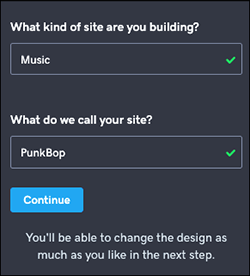
Note: Go to Settings to change your category and site name. - Now fine-tune your site by selecting Theme then Try a new look.

- Look through the themes until you find one you like, and select it. Every theme has its own name so you can remember the one you like. Note: Selecting a theme will automatically apply it to your site. Remember the name of your previous theme if you want to switch back.
- When you’re ready to make the site public, publish your site.
Next steps
More info
- Change my theme
- Compare plans and pricing if you want your own domain name or need more functionality.
- If updating your category in Settings isn’t enough, you do have the option to reset your site. If it’s a matter of choosing different pictures, remember we have more royalty-free stock images ready for you to use.